Resume Margins: What Size Should Your Margins Be?
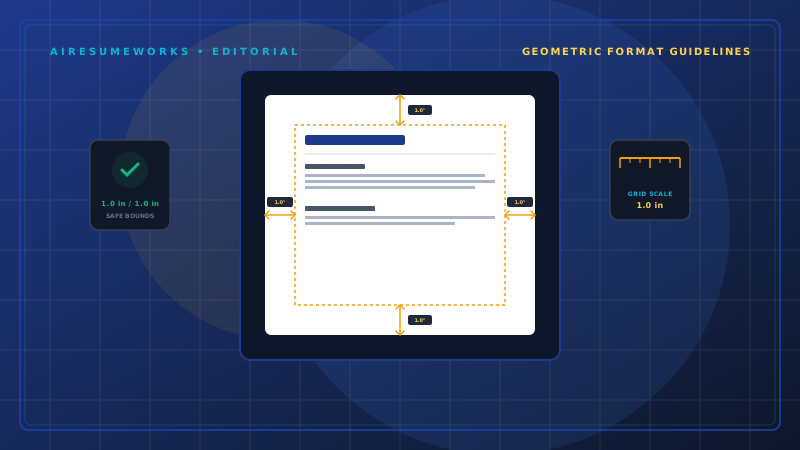
Resume margins may seem like a small formatting detail, but they can have a noticeable effect on how your resume looks and reads. Margins determine how much space surrounds the content on each page and can affect whether your resume feels balanced, crowded, or difficult to read.
The goal is to use margins that give your resume enough breathing room while still providing enough space for your relevant experience and qualifications.
What Are Resume Margins?
Resume margins are the blank spaces between the content of your resume and the edges of the page. You have four primary margins:
- Top margin
- Bottom margin
- Left margin
- Right margin
These spaces create a boundary around your text and help give the document a clean appearance. Margins are part of your overall resume formatting, along with:
- Font size
- Line spacing
- Section spacing
- Headings
- Bullet points
- Page layout
Choosing reasonable margins can make your resume easier to read without unnecessarily increasing its length.
What Is the Standard Resume Margin?
A common starting point for resume margins is 1 inch on all sides. That means:
- 1 inch at the top
- 1 inch at the bottom
- 1 inch on the left
- 1 inch on the right
This creates a balanced amount of white space and is a good default for many resumes. You don't necessarily have to use exactly 1-inch margins, however.
If your resume is slightly too long or contains a small amount of extra space, modestly adjusting the margins can help improve the layout.
Can Resume Margins Be Smaller Than 1 Inch?
Yes. You can reduce your margins somewhat when necessary, particularly if your resume is just slightly too long. For example, margins around 0.75 inch can provide additional writing space while still leaving a reasonable amount of white space.
The important thing is not to make the margins so narrow that the page becomes crowded. If you find yourself reducing the margins dramatically just to fit everything onto the page, the problem may be the amount of content rather than the margins.
Should You Use 0.5-Inch Margins?
A 0.5-inch margin gives you significantly more usable space on the page. It can sometimes be appropriate for a resume that contains a lot of relevant information, but it should be used carefully.
Very narrow margins can make a document feel crowded, particularly when combined with:
- Small fonts
- Tight line spacing
- Long paragraphs
- Numerous bullet points
- Large amounts of information
If your resume only fits after reducing the margins to 0.5 inch, look for unnecessary content that can be removed before making the margins extremely narrow.
What If Your Resume Is Too Long?
Don't immediately reduce the margins when your resume runs onto an extra page. First, review the content. Look for:
- Repeated information
- Irrelevant experience
- Outdated information
- Excessive descriptions
- Unnecessary sections
- Redundant skills
- Long paragraphs
Removing unnecessary information can improve the resume while also reducing its length. You can then make modest formatting adjustments if needed.
Don't Make Your Margins Too Narrow
One of the most common resume formatting mistakes is trying to squeeze too much information onto one page. For example, a resume with:
- 25-inch margins
- Very small text
- Tight line spacing
- Minimal space between sections
may technically fit on one page, but it can be difficult to read. The purpose of a resume isn't simply to use as much of the page as possible. The reader should be able to move through the document comfortably.
If the page looks crowded, consider removing unnecessary information or adjusting other formatting elements instead of simply shrinking the margins.
What If Your Resume Has Too Much White Space?
The opposite problem can also occur. If your resume contains a large amount of unused space, the document may look incomplete. Before reducing your margins to fill the page, check whether you can improve the organization of your content.
You might be able to:
- Increase spacing between sections slightly
- Improve the organization of your work experience
- Add relevant accomplishments
- Expand a useful professional summary
- Improve the skills section
Don't add irrelevant information simply to fill empty space. White space is useful. A resume doesn't need to cover every square inch of the page.
Resume Margins and White Space
White space is an important part of professional resume design. It separates sections and gives the reader visual breaks. For example, having a little extra space between:
Professional Summary
and
Professional Experience
can make the document easier to scan. The same applies to individual jobs and bullet points. Margins contribute to this overall balance by providing space around the outside of the document.
A well-designed resume uses both margins and internal spacing effectively.
Should All Four Margins Be the Same?
Using the same margin on all four sides is a simple and reliable approach. For example:
- Top: 1 inch
- Bottom: 1 inch
- Left: 1 inch
- Right: 1 inch
This creates a symmetrical appearance. However, there are situations where slightly different margins can be useful. For example, if a resume needs a little additional vertical space, you might adjust the top and bottom margins while keeping the left and right margins unchanged.
For most people, however, keeping all four margins consistent is the easiest option.
Resume Margins for One-Page Resumes
If you're trying to create a one-page resume, margins can become particularly important. A one-page resume doesn't mean you should make everything as small as possible.
Instead, use the page efficiently. Start with reasonable margins and then adjust other elements if necessary. You might:
- Remove unnecessary information
- Shorten repetitive bullet points
- Reduce excessive spacing
- Combine related information
- Simplify your skills section
- Use a slightly smaller but still readable font
Only after making these improvements should you consider modestly reducing the margins.
Resume Margins for Two-Page Resumes
A two-page resume doesn't necessarily need smaller margins. If you have enough relevant experience to justify two pages, maintain comfortable margins and focus on readability.
An experienced professional may need additional space to explain:
- Multiple positions
- Leadership responsibilities
- Specialized skills
- Major accomplishments
- Certifications
- Projects
Don't force extensive professional experience into one page simply because you believe every resume must be one page. The appropriate length depends on your experience and the position you're pursuing.
Resume Margins and ATS Compatibility
Margins themselves aren't usually the primary concern when it comes to Applicant Tracking Systems (ATS). The more important considerations are whether the text is readable and whether the document uses a straightforward structure.
A clean resume with reasonable margins is generally preferable to one that uses complicated formatting to fit more information onto the page. Keep important information in normal text rather than placing it inside images or decorative elements.
A simple layout can benefit both human readers and automated systems.
Resume Margins for Different File Formats
Your resume may look slightly different depending on the file format and software used to view it. A resume created in Word can sometimes change appearance when opened in different programs.
PDF files generally preserve the layout more consistently. Before submitting your resume, open the final file and check:
- Margins
- Page breaks
- Text alignment
- Section headings
- Bullet points
- Spacing
- Overall appearance
Make sure nothing has shifted unexpectedly.
How to Change Resume Margins in Microsoft Word
If you're using Microsoft Word, you can adjust the margins through the page layout settings. A typical process is:
Open your resume. Select the page layout or layout options. Open the margin settings. Choose a preset margin size or enter custom measurements. Review the document after changing the margins. Save the updated resume.
The exact menu names can vary depending on the version of Word you're using.
How to Change Resume Margins in Google Docs
Google Docs also allows you to change page margins. A typical process is:
Open your resume. Open the page setup options. Locate the margin settings. Enter the desired measurements. Apply the changes. Review the entire document.
After changing the margins, check the page breaks and spacing because moving the margins can change where content appears.
How Much Should You Adjust the Margins?
There is no requirement that every resume use exactly the same margin size. A useful approach is to start with 1-inch margins. If the resume is too long by a small amount, try a modest adjustment.
For example, reducing the margins to around 0.75 inch may provide additional space without making the document feel crowded. If you need substantially smaller margins, reconsider the content and formatting first.
The goal is to solve the underlying problem rather than simply forcing everything onto the page.
Don't Use Margins to Hide Poor Formatting
Margins can't fix every resume design problem. If your resume looks crowded, the problem may actually be:
- Too much information
- Excessive bullet points
- Large headings
- Poor spacing
- Long paragraphs
- An inefficient template
- Repetitive content
Changing the margins may provide more space, but it won't necessarily make the resume better. Look at the entire page before deciding what needs to change.
Resume Margins for Creative Resumes
Creative professionals may have more flexibility with resume design. A designer or creative professional might use a different layout or spacing approach to complement a portfolio.
Even then, readability should remain a priority. Margins should still provide enough separation between the document and the edge of the page. Creative design doesn't require eliminating useful white space.
Common Resume Margin Mistakes
Avoid these common mistakes when setting your margins.
Making Margins Extremely Narrow
Very narrow margins can make the resume feel crowded.
Using Huge Margins
Very large margins can unnecessarily reduce the space available for relevant information.
Shrinking Margins Instead of Removing Unnecessary Content
If your resume is too long, review the content before changing the page layout.
Ignoring Page Breaks
Changing margins can move sections to another page, so always review the complete document afterward.
Forgetting to Check the Final File
A resume can look different after being converted to PDF or opened on another computer. Review the actual file you're going to submit.
A Simple Resume Margin Guide
If you're unsure what to use, this is a practical starting point:
Situation Suggested Approach Standard resume 1-inch margins Resume slightly too long Consider modestly smaller margins Resume needs significantly more space Reduce unnecessary content first Resume has excessive white space Improve spacing and organization Online application Use a clean, readable layout Experienced professional Don't force everything onto one page
These aren't rigid rules. The appropriate margin depends on the overall design and amount of information in your resume.
The Best Resume Margin Is the One That Supports Readability
For most resumes, starting with 1-inch margins is a simple and professional choice. If you need additional space, modestly reducing the margins can be reasonable. But don't make them so narrow that the resume becomes crowded or difficult to read.
Before changing the margins, look at the content itself. Removing repetition, shortening unnecessary descriptions, and improving organization can often solve a length problem more effectively than shrinking the page margins.
Your margins should support the overall design of the resume, not become a way to squeeze as much information as possible onto the page. A professional resume should have enough content to demonstrate your qualifications while still leaving enough space for the reader to move through the document comfortably.